 My Lyrics
How to delete songs and setlists
As your library grows, it’s normal to want to get rid of the songs and setlists you no longer use. You can do it from the app itself, but keep in mind that these actions cannot be undone: if you are unsure, back up first.
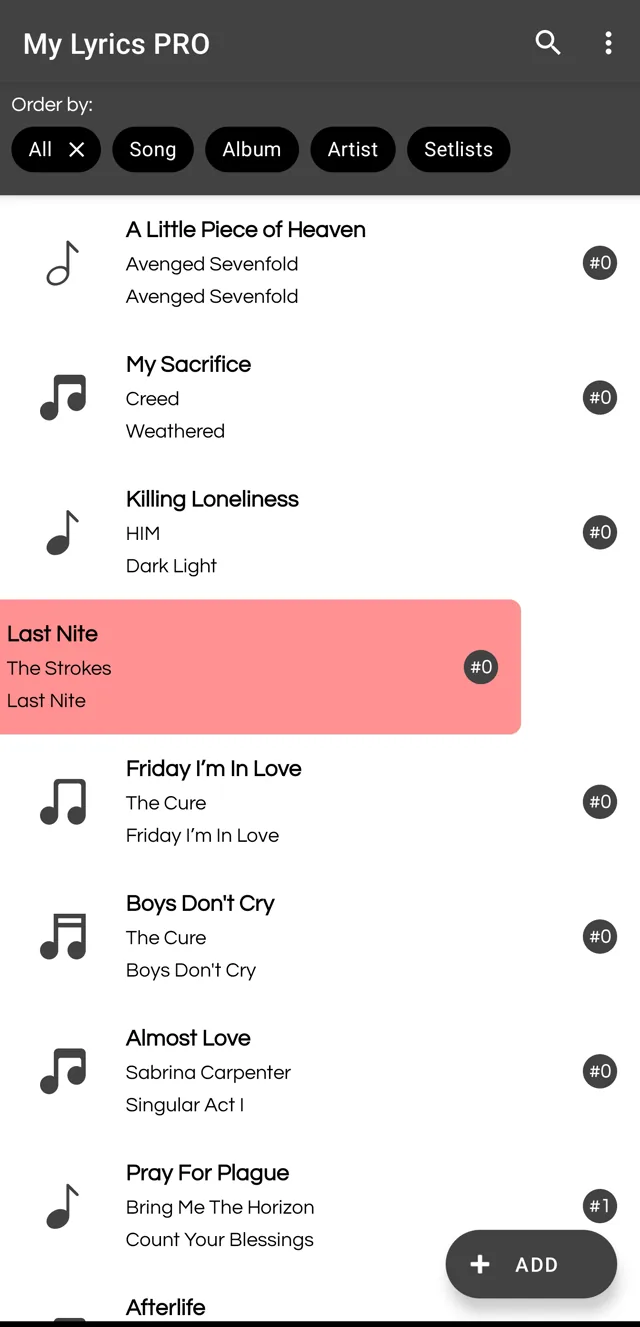
Delete a song by swiping
Your list shows all your songs.
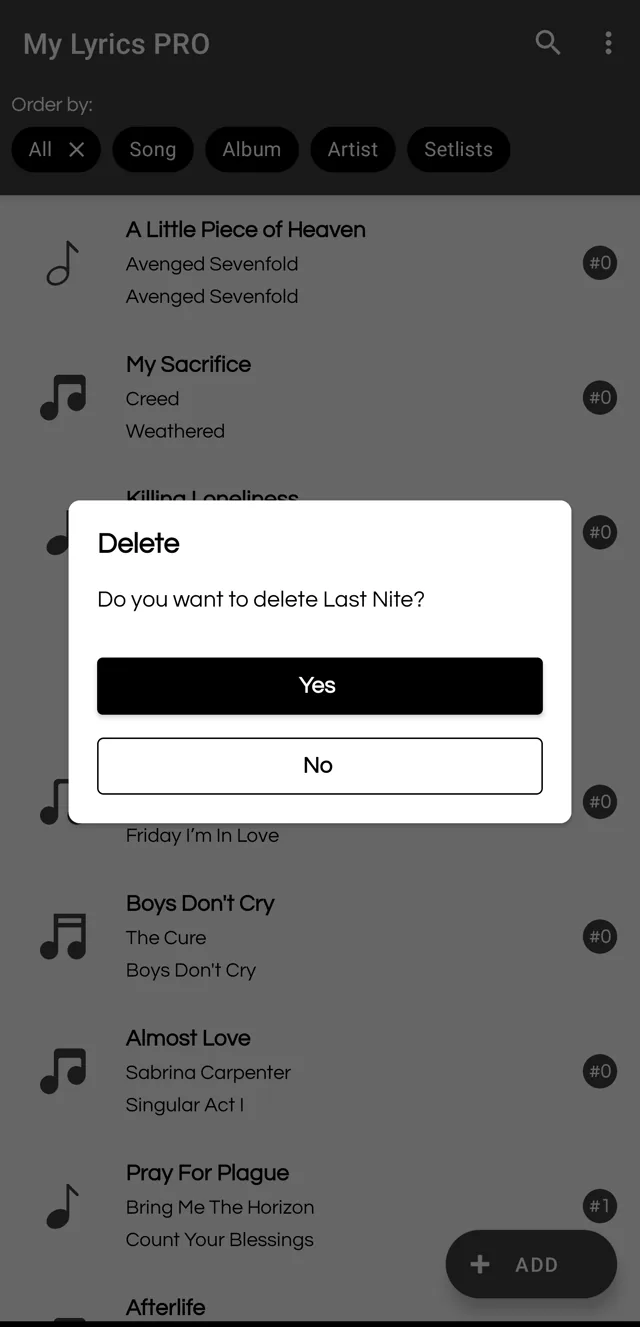
- Swipe the song to the left or to the right.
- The app asks whether you want to delete it.
- Tap Yes to remove it, or No to leave it as it was.
Delete a song from its screen
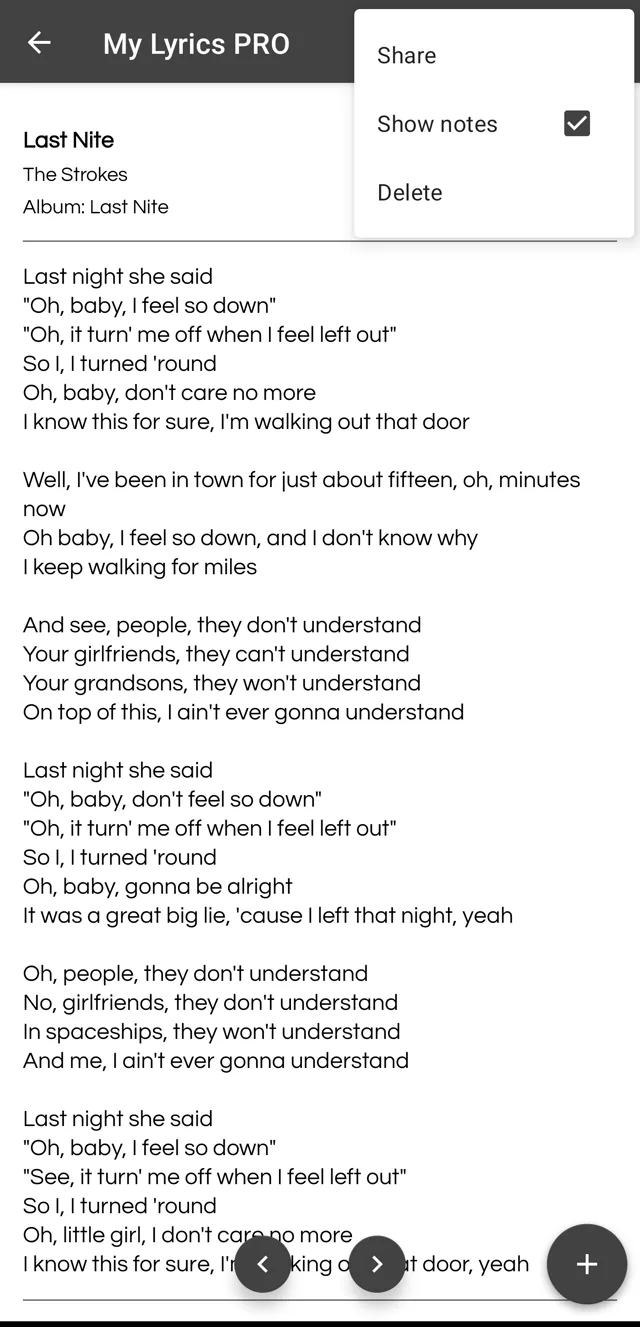
If the song is already open, you don’t need to go back to the list:
- Tap the three-dot menu (⋮) at the top right.
- Choose Delete.
- Confirm with Yes.
What happens when you delete a song
- The song, its lyrics and its chords are removed from your phone.
- If the song was in one or more setlists, it disappears from them; the setlists are kept.
- It cannot be undone.
This works the same in the free version and in PRO.
Delete a setlist
Setlists are deleted in a different way: by pressing and holding, not by swiping.
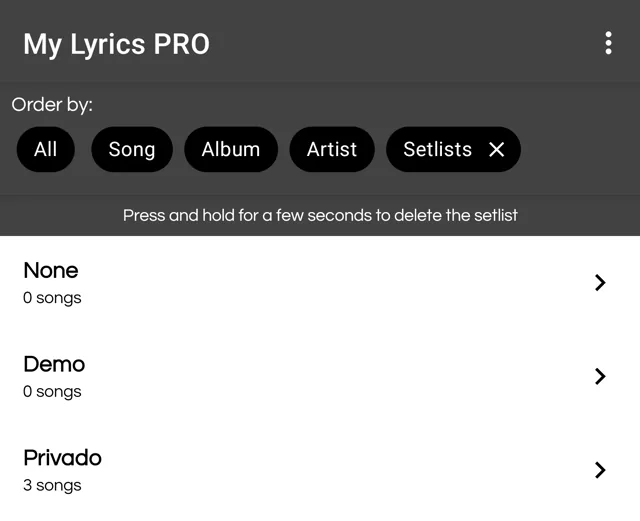
- On the main screen, tap the Setlists filter.
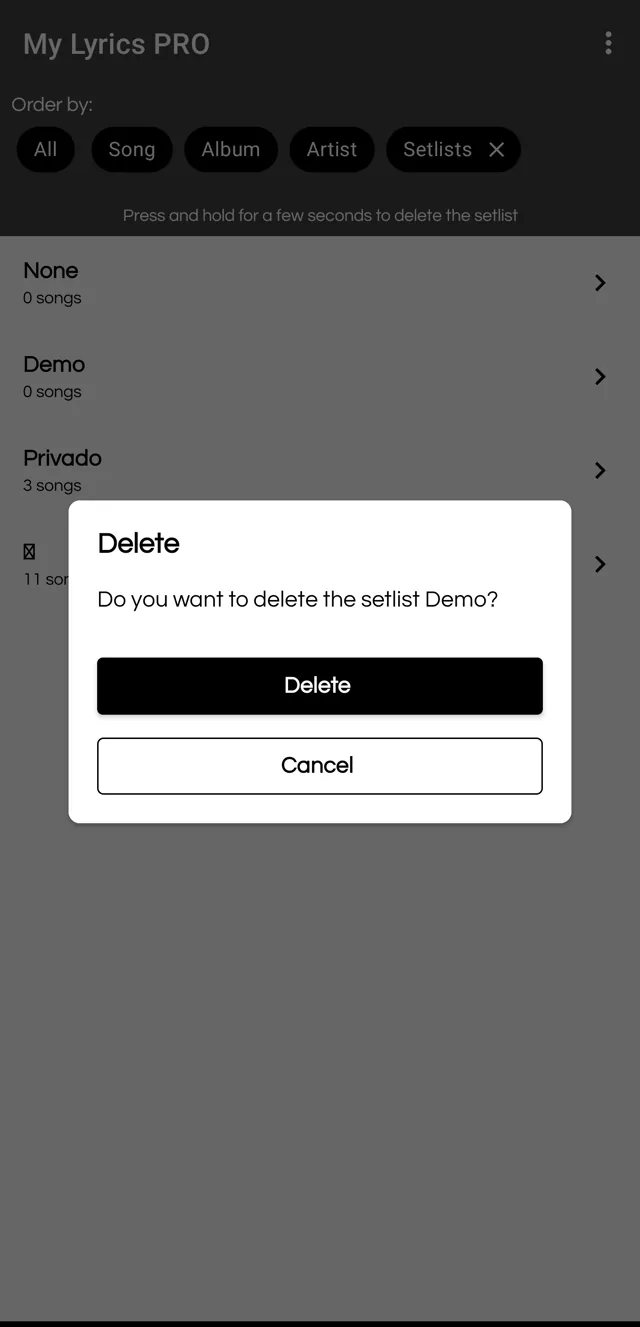
- You will see your setlists and the hint “Press and hold for a few seconds to delete the setlist”.
- Press and hold the card of the setlist you want to delete.
- Tap Delete to confirm, or Cancel to keep it.
What deleting a setlist means
- Only the setlist is deleted: the songs it contained stay in your library.
- It cannot be undone.
- The No setlist entry is just a view of the songs that are not in any setlist, and it cannot be deleted.
- In the free version you can have up to 3 setlists, so deleting one frees a slot to create another. With PRO there is no limit.
Before deleting in bulk
If you are going to remove many songs or setlists, back up first: that way you can recover them if you change your mind. We explain it in the guide on backing up and restoring your lyrics.