 My Lyrics
How to create a design with your song
In Tools → Create design with your lyrics you pick a song and turn it into an image for social media, stories or covers.
Choose the song and the fragment
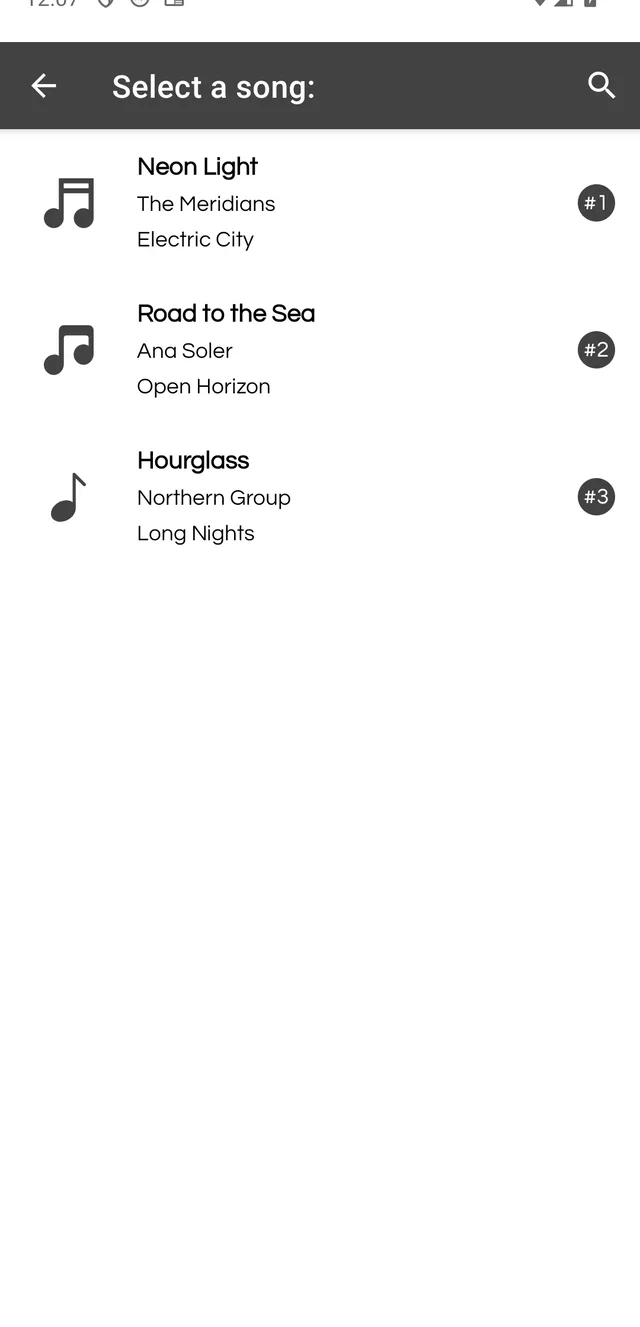
- Open Tools and tap Create design with your lyrics.
- Select the song from the list.
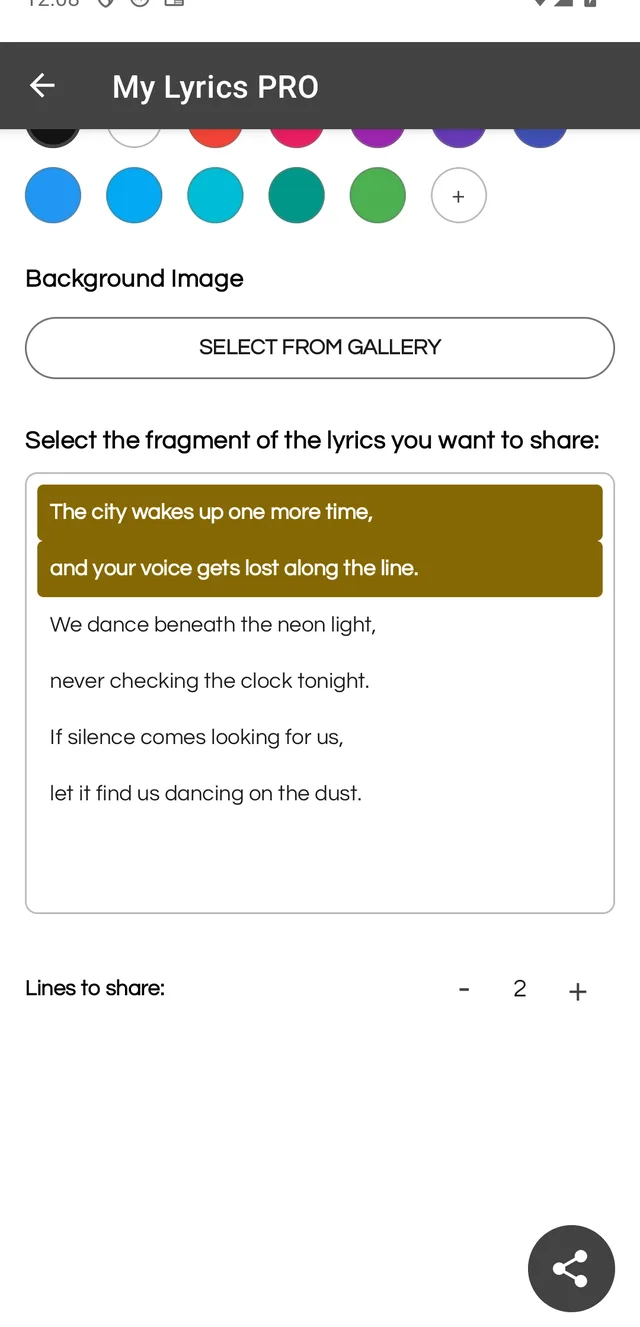
- Under Select the lyric fragment you want to share, use the + and − buttons next to Lines to share until you keep only the lines you want to show.
Customize the design
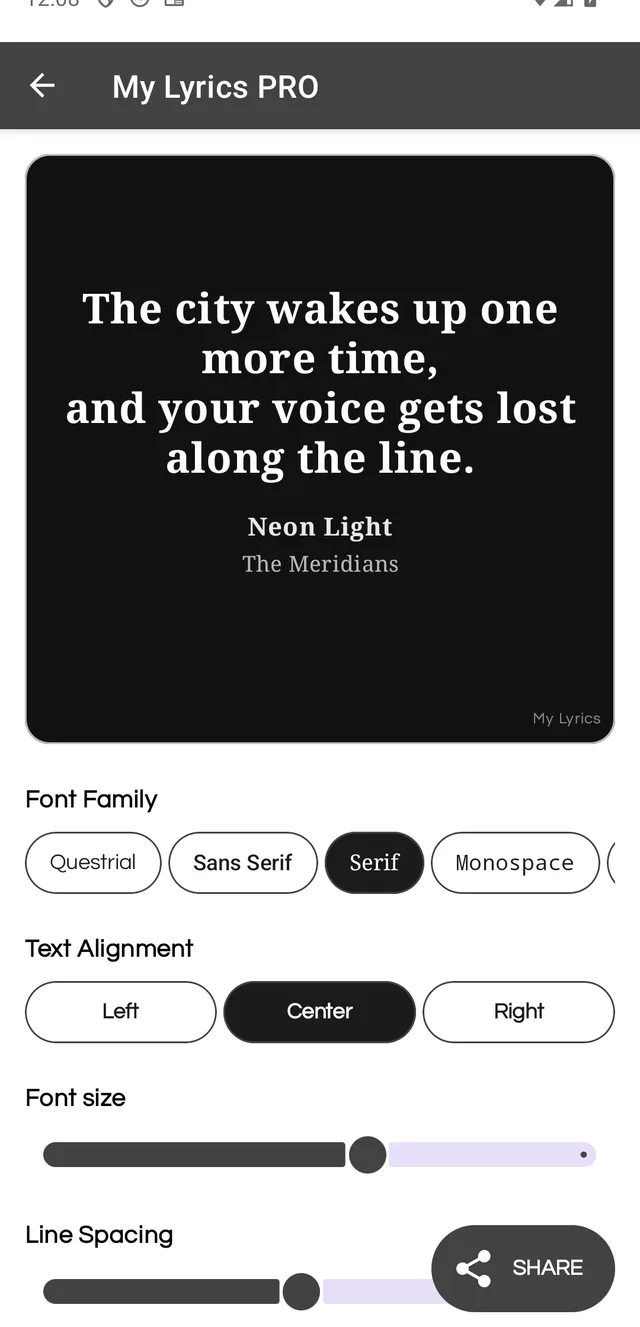
- Font style: Questrial, Sans Serif, Serif or Monospace.
- Text alignment: left, center or right.
- Font size and Line spacing: sliders that control how the lyrics read.
- Text color and Background color: preset color palettes.
- Background image: pick a photo from your gallery.
The preview updates instantly. If the text is hard to read, increase the font size or pick a color combination with more contrast.
Share the image
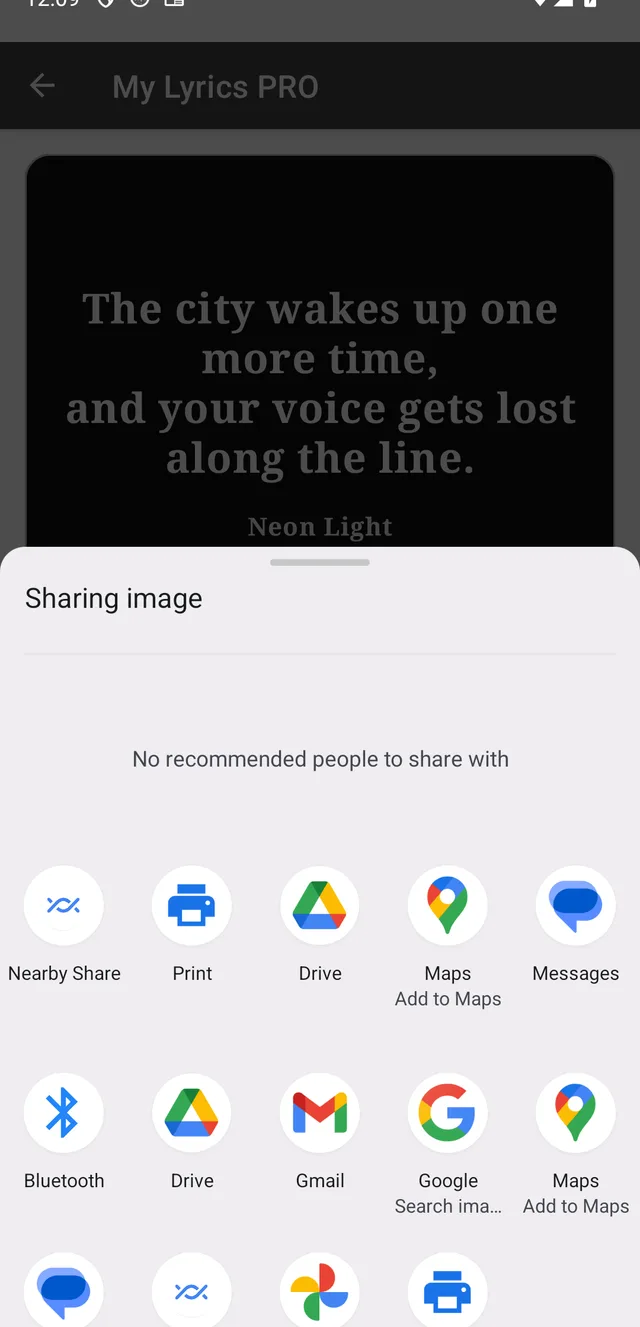
Tap SHARE and pick the target app in the Android share sheet. The app generates the image exactly as you see it in the preview.
Free version: you get 3 uses of this tool. PRO makes it unlimited.
Your customization is not kept when you leave the screen: if you want to keep it, share or save the image before going back.