 My Lyrics
How to use Presentation Mode
Presentation Mode / External Display shows the lyrics on a TV or monitor while you control them from your phone.
Before you start
Connect an external display to your device (Smart TV, monitor, etc.). It can be HDMI, casting or whatever video output your setup uses. Without a connected display there is nowhere to project.
When you open Tools → Presentation Mode / External Display, the app shows a notice with three steps:
- Connect an external display to your device.
- Select the song you want to project from your list.
- Use the on-screen controls to manage the teleprompter and the speed.
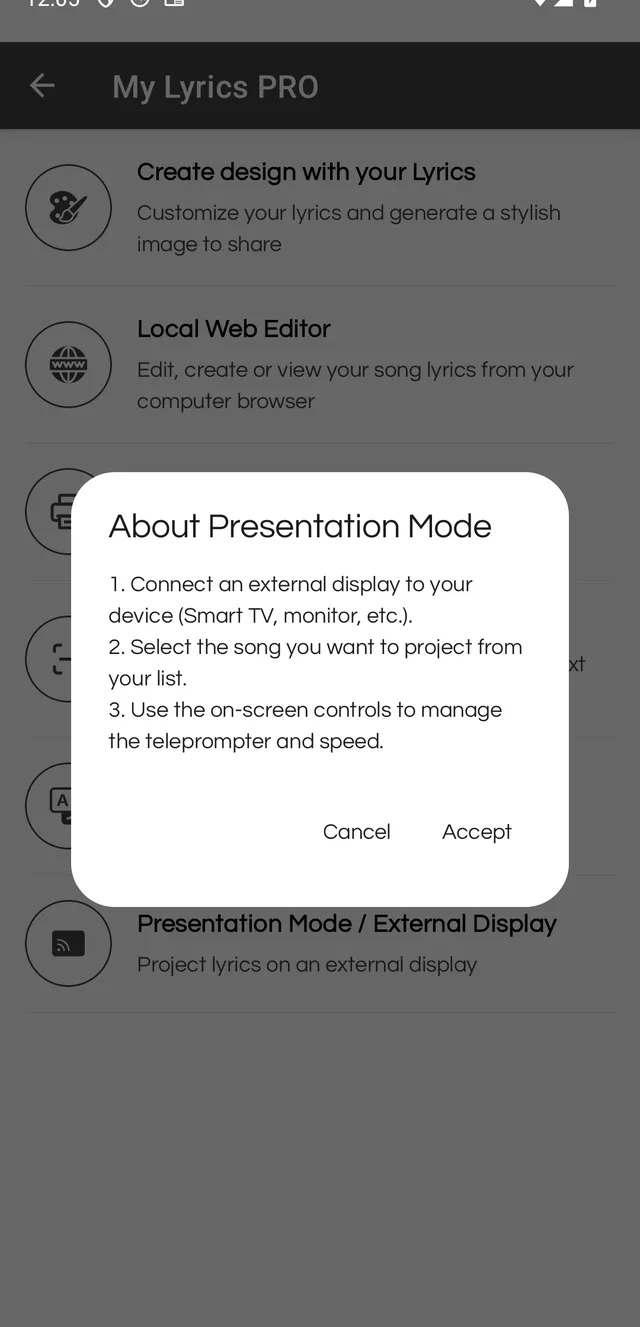
Tap Accept to continue.
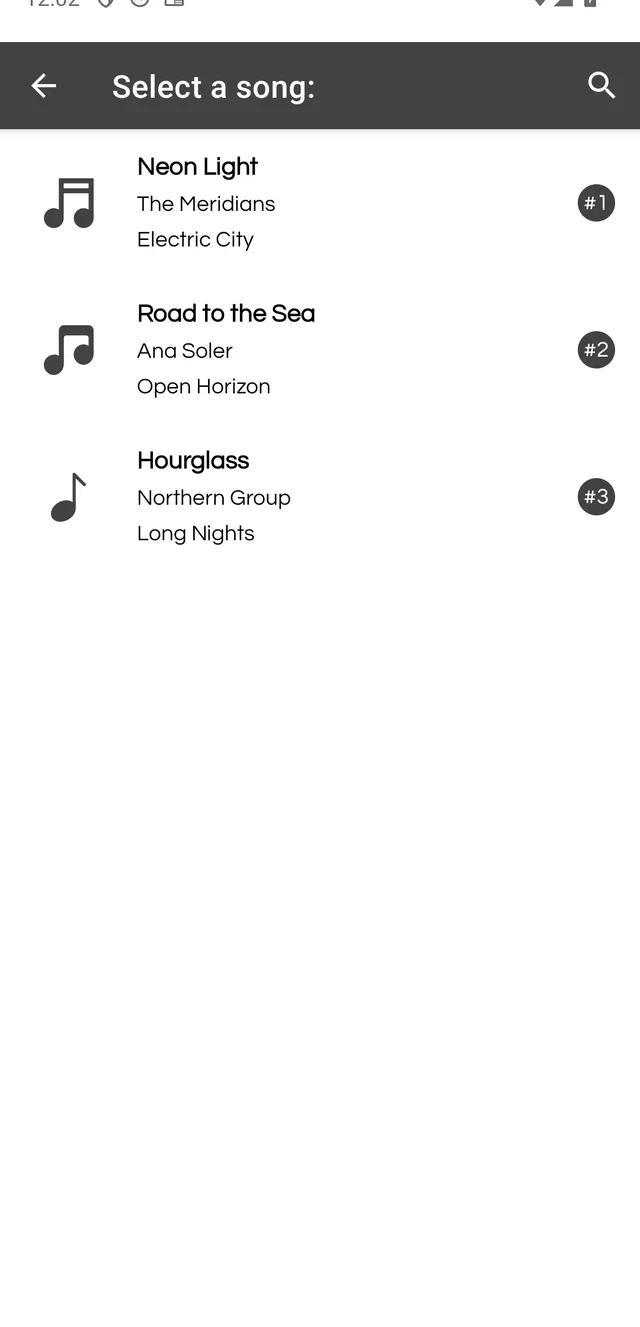
Choose the song
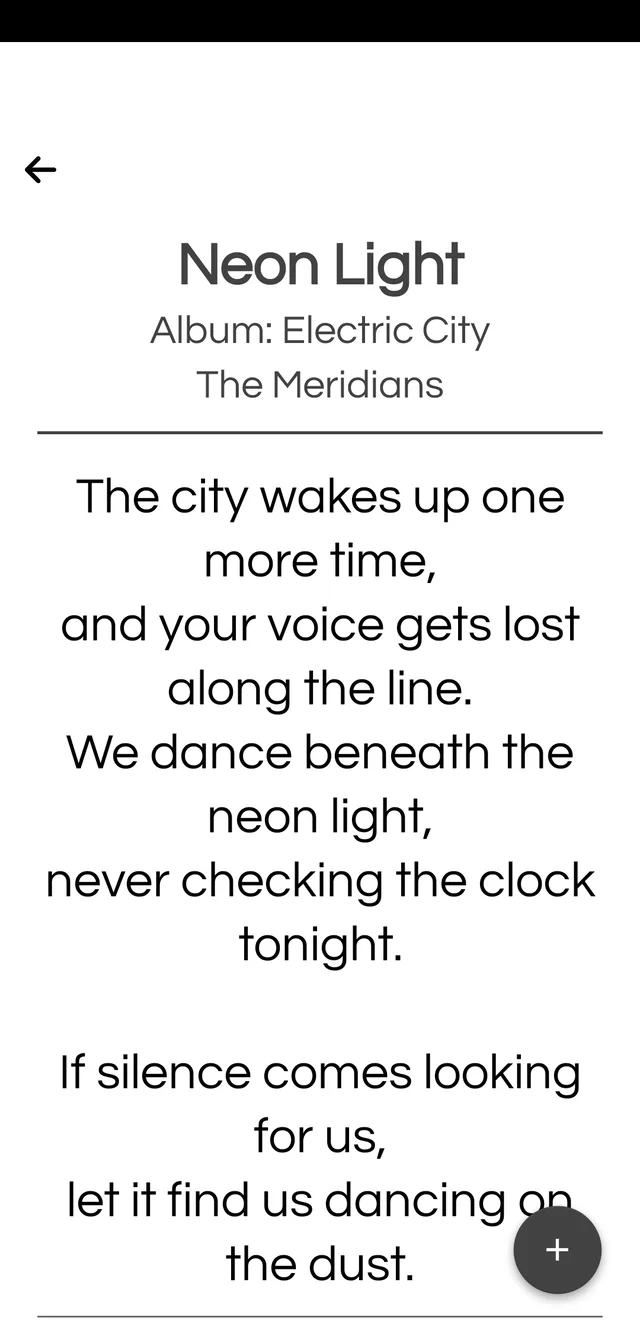
Select the song from the list. The lyrics appear on the external display and, on the phone, you see the same view with the floating controls button.
The controls
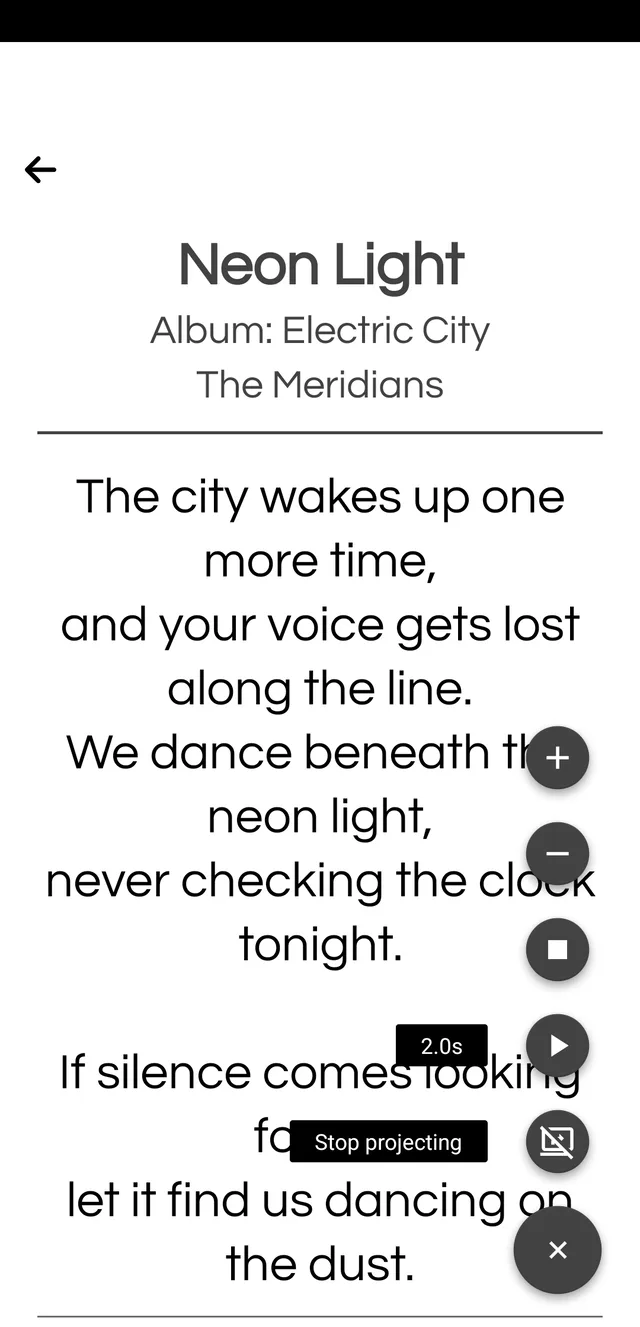
Tap the floating + button to expand the controls:
- + and −: raise or lower the teleprompter speed. The current value is shown next to the play button, for example 2.0s.
- Play / Pause: starts or stops the automatic scrolling.
- Stop: goes back to the beginning of the lyrics.
- Stop projecting: ends the presentation and closes the view on the external display.
- ×: collapses the controls.
Free version: you get 5 uses of this tool. PRO makes it unlimited.