 My Lyrics
How to use the local web editor
The Local web editor starts a small server on your phone so you can work with your lyrics from a computer browser, with no cables and nothing to install.
Start the session
- Open Tools and tap Local web editor.
- Tap Start local web editor. The app shows the address to open, for example
http://10.0.2.15:8080. - Tap Copy URL to put it on your clipboard.
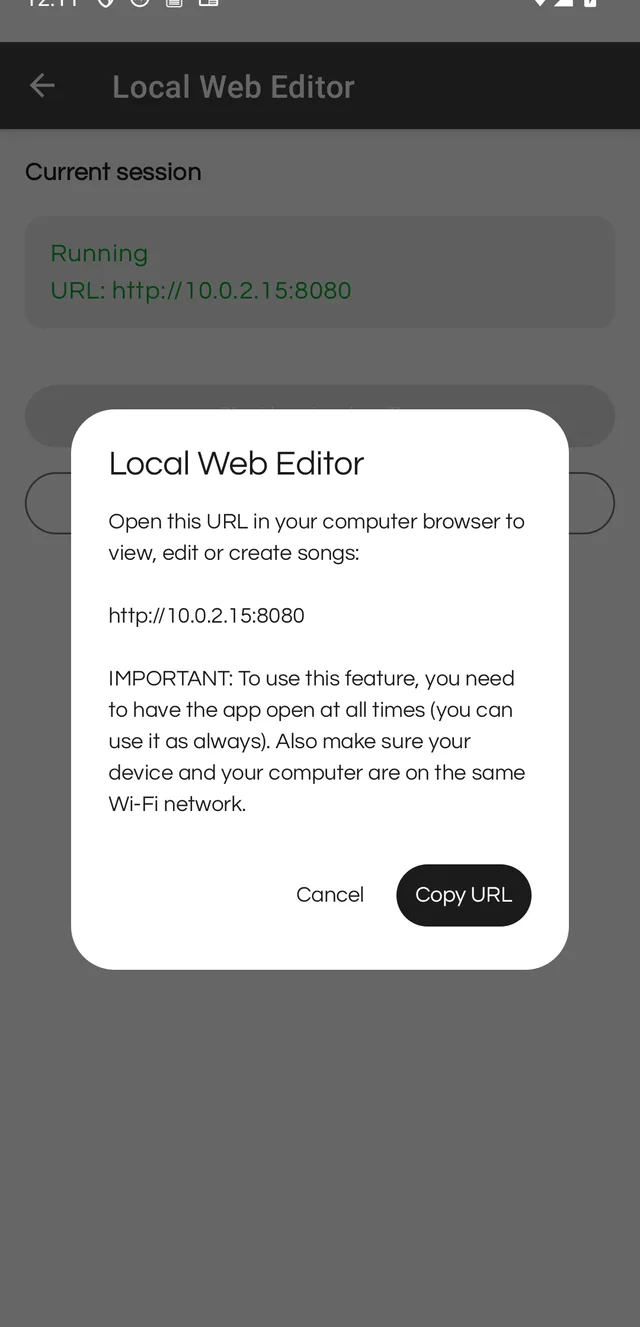
Keep the app open while you use the editor, and connect the phone and the computer to the same Wi-Fi network.
Open the editor on your computer
- Paste the URL into your computer browser.
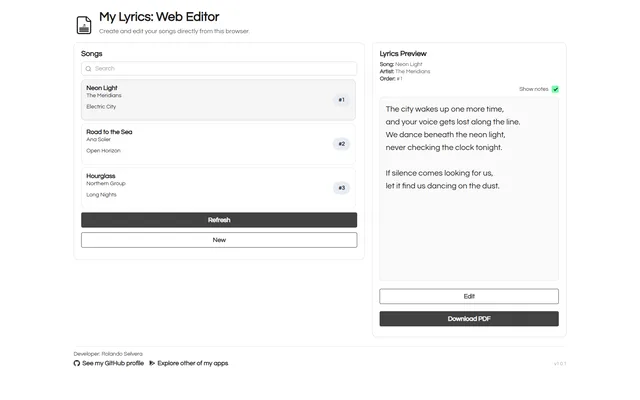
- You will see the song list with a search box and a lyrics preview.
- Select a song to read it, then use Edit to open the form.
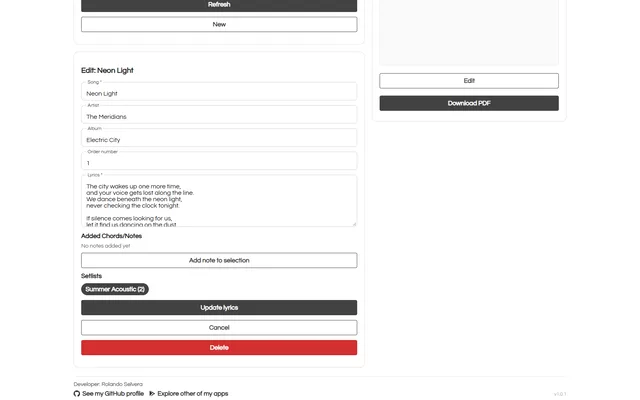
In the editor you can change Song, Artist, Album, Order and Lyrics, plus the song’s chords, notes and setlists. Save writes the changes to your phone right away; Cancel discards the edit and Delete removes the song.
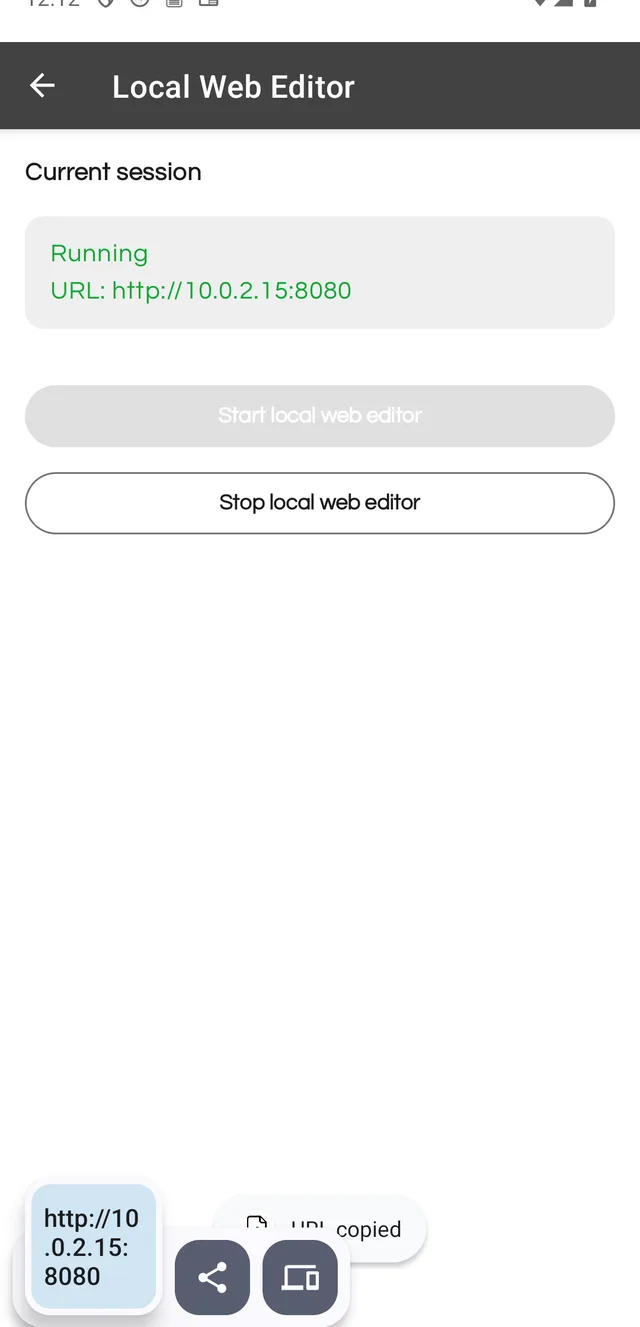
The session stays active while the app is open. When you are done, tap Stop local web editor to close it.
Free version: you get 1 use of this tool. PRO makes it unlimited.